
Script Tag
The script tag works on any website — static sites, Squarespace, Webflow, Ghost, or any CMS that lets you add HTML to the <head>.
Step 1 — Sign in and go to Settings
Section titled “Step 1 — Sign in and go to Settings”Sign in at app.moszaic.ai, then click Settings in the left sidebar.
Step 2 — Create a property
Section titled “Step 2 — Create a property”Click the Properties tab, then + Add Property. Enter your site name and URL and click Save.
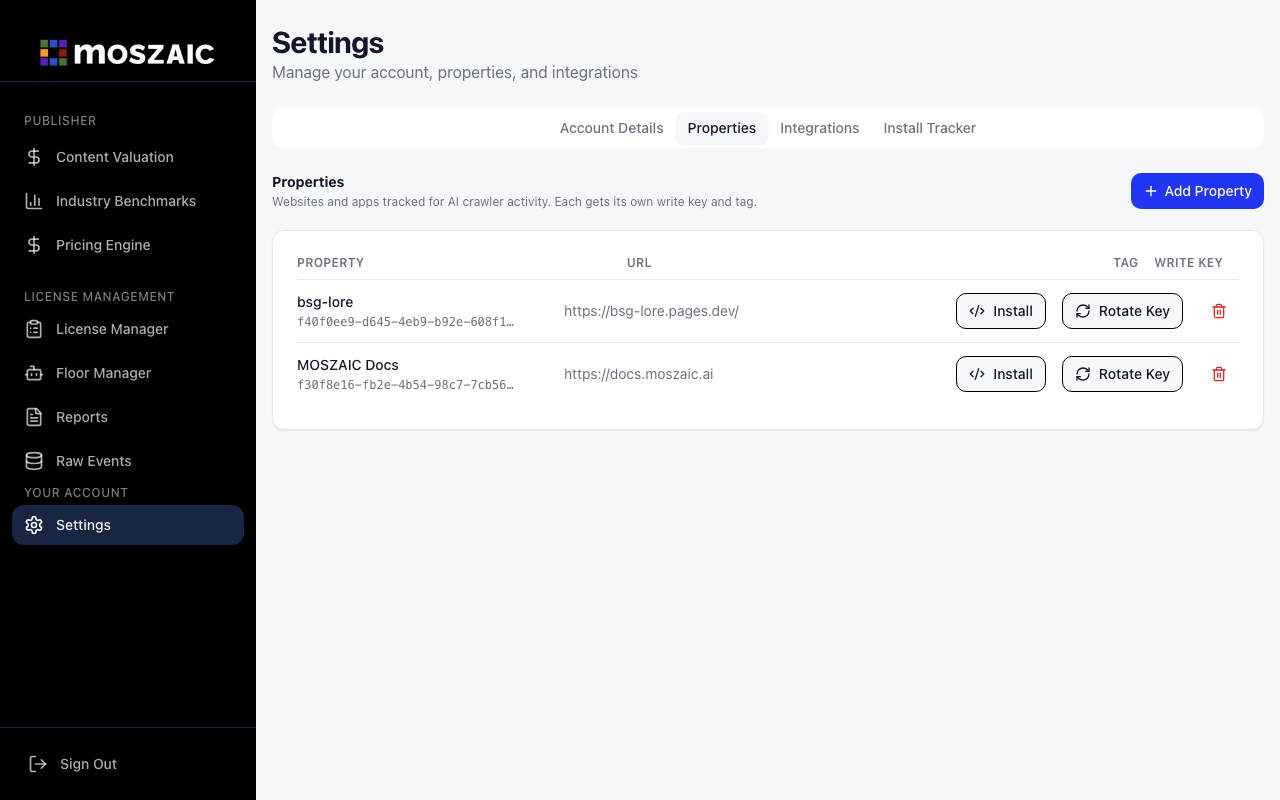
If you already have a property, skip this step.
Step 3 — Copy your snippet
Section titled “Step 3 — Copy your snippet”Click the Install Tracker tab. Select your property from the dropdown, then copy the pre-filled snippet from the Script Tag tab.
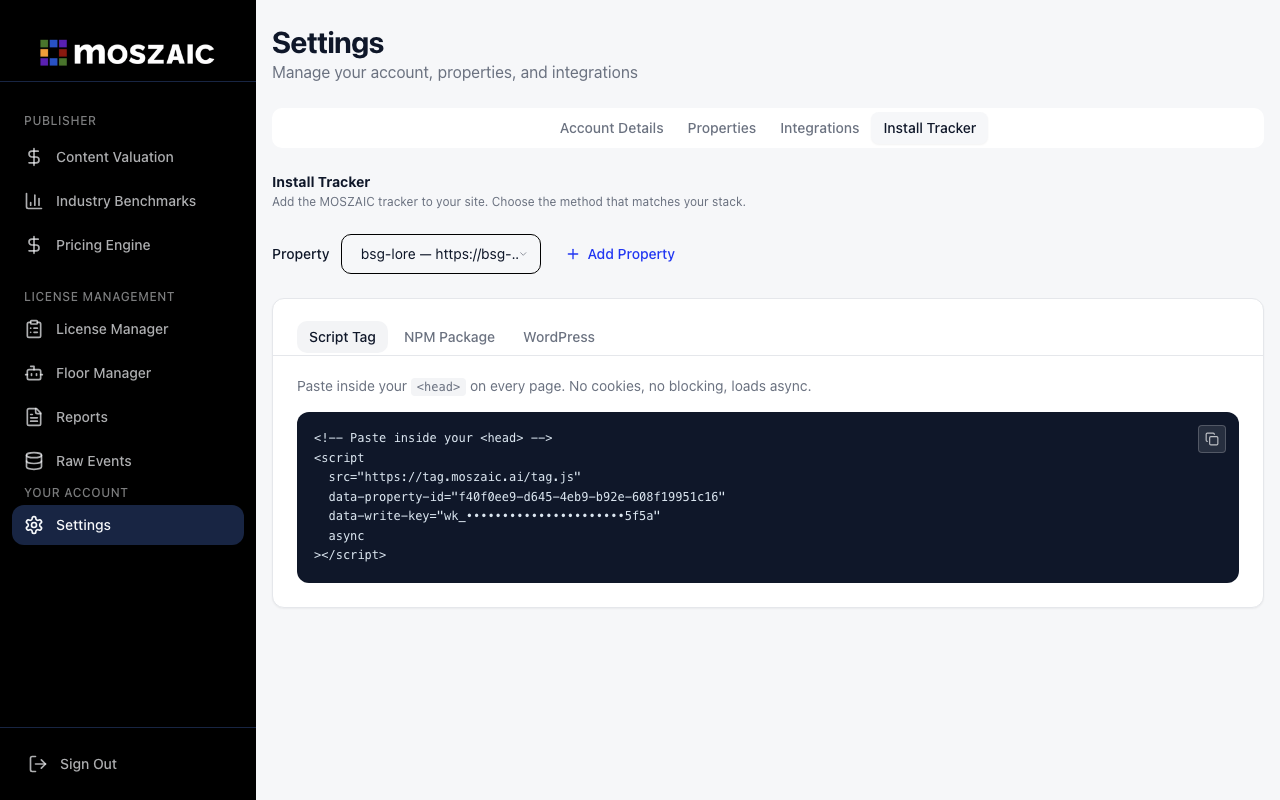
Your snippet will look like this, with your credentials already filled in:
<!-- Paste inside your <head> --><script src="https://tag.moszaic.ai/static/tag.js" data-property-id="your-property-id" data-write-key="wk_your_write_key" async></script>Step 4 — Add it to your site
Section titled “Step 4 — Add it to your site”Paste the snippet inside the <head> on every page of your site.
Squarespace: Settings → Advanced → Code Injection → Header
Webflow: Site Settings → Custom Code → Head Code
Ghost: Settings → Code injection → Site header
WordPress: Use the WordPress plugin instead — it captures all bots server-side.
Step 5 — Verify
Section titled “Step 5 — Verify”After installing, open your site in a browser. Go to your MOSZAIC dashboard — a human visit event should appear within a few seconds.
If nothing shows up after a minute:
- View source on your site and confirm the script tag is in
<head> - Check that the
data-property-idanddata-write-keymatch your property in Settings → Properties
Troubleshooting
Section titled “Troubleshooting”| Symptom | What to check |
|---|---|
| No events after installing | View source on your page and confirm the script tag is present inside <head> |
| Script tag is there but still no events | Confirm data-property-id and data-write-key match the values in Settings → Properties |
| Events appear but stop after a day | Your Write Key may have been rotated — go to Settings → Properties and update the tag with the new key |
Events show as unknown bot type | Normal for human visits — the dashboard labels them correctly |
| Content Security Policy (CSP) blocking the tag | Add https://tag.moszaic.ai to your CSP script-src and connect-src directives |
| Squarespace / Webflow not saving the code | Make sure you’re pasting in the Header injection field, not the footer |
If you’re still stuck, send the page URL and your property ID to support and we’ll check the event logs directly.
Privacy
Section titled “Privacy”The script tag does not set cookies, use localStorage, or fingerprint devices. It is compatible with strict GDPR implementations without a cookie consent banner. See the data privacy policy for details.