
Sign Up & Overview
MOSZAIC tracks AI crawler activity on your content and gives you the data to understand — and monetize — what your site is worth to AI companies.
Step 1 — Create your account
Section titled “Step 1 — Create your account”Go to app.moszaic.ai/signup to create your account.
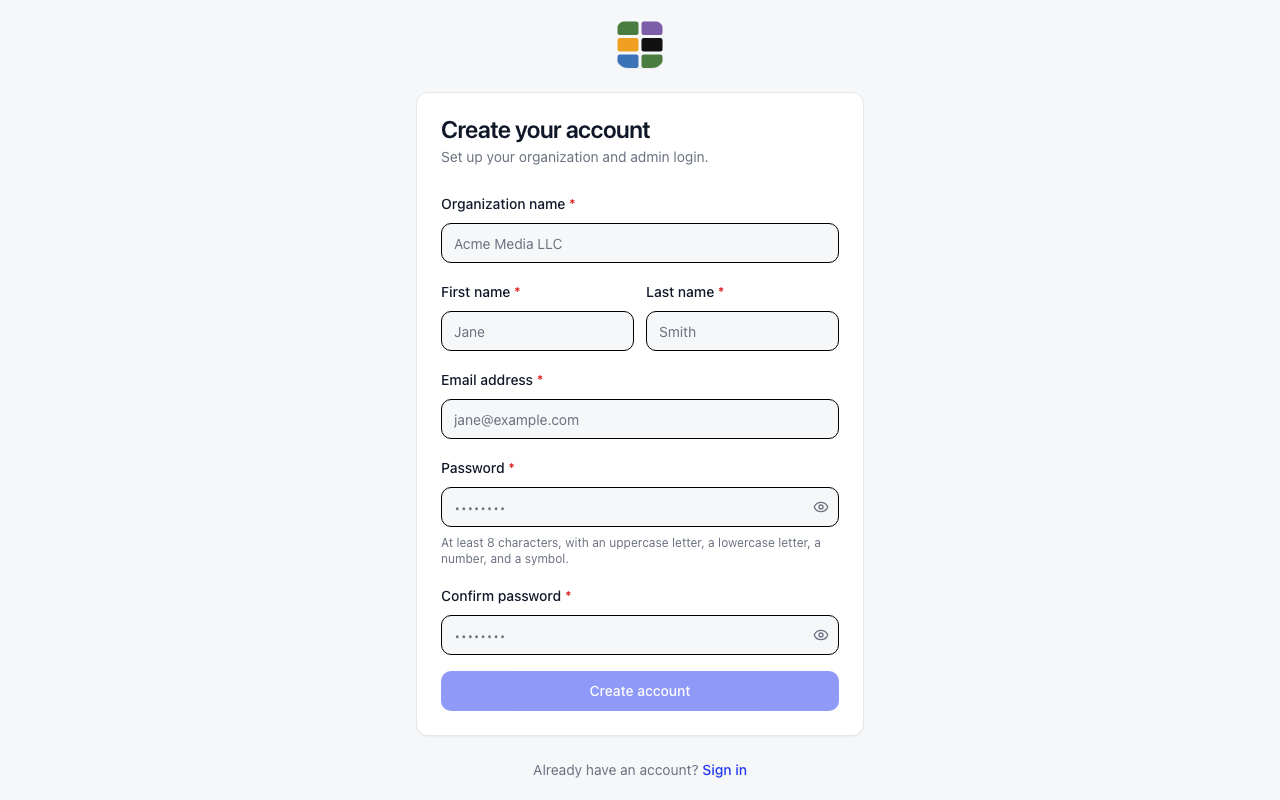
Fill in:
- Organization name — your company or publication name
- First name and Last name
- Email address — used to sign in
- Password — at least 8 characters, with an uppercase letter, a lowercase letter, a number, and a symbol
Click Create account. MOSZAIC provisions your account immediately — no email verification step. You can sign in right away.
Step 2 — Create a property
Section titled “Step 2 — Create a property”A property represents one website or domain. You need at least one before you can install the tracker.
Go to Settings → Properties and click + Add Property.
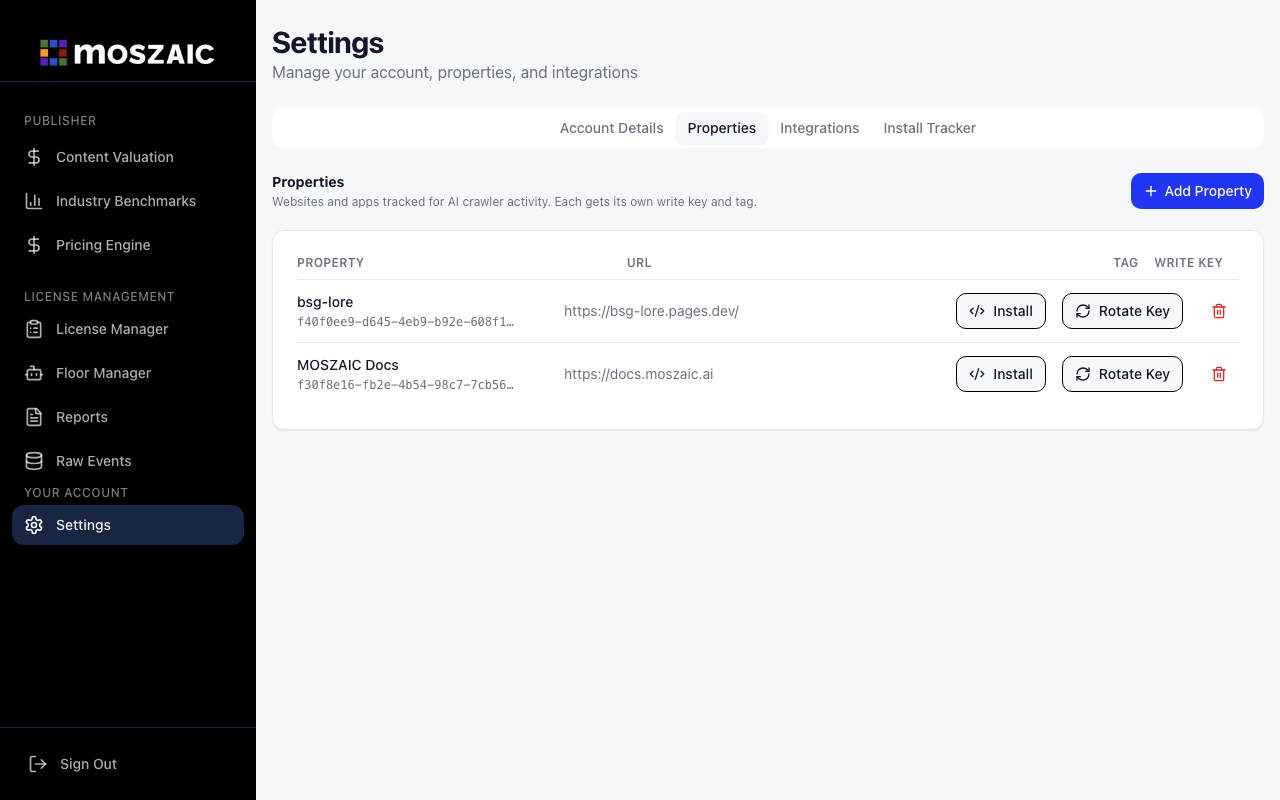
Enter a Property Name (e.g. Runway Magazine) and your site’s URL (e.g. https://runwaymagazine.com), then click Save.
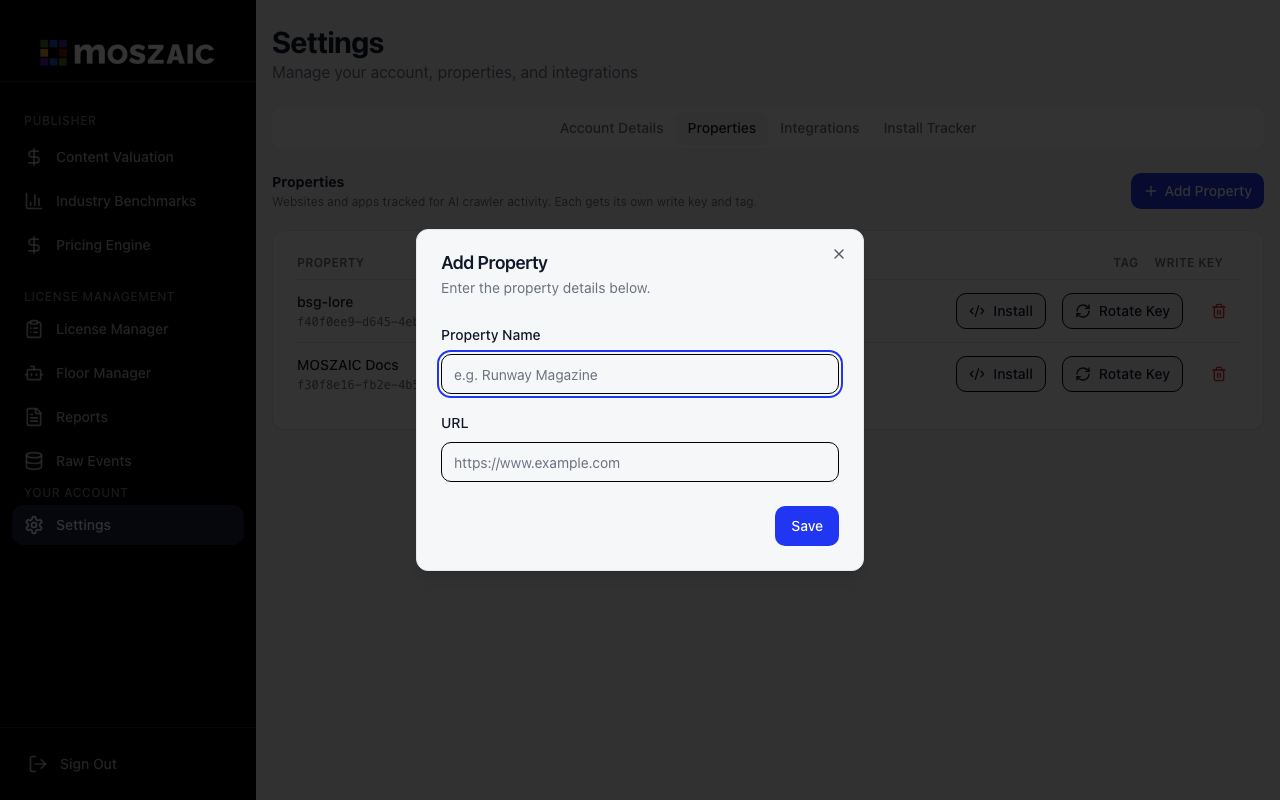
After saving, your property appears in the list with its Property ID (UUID) and a Write Key (wk_...). You’ll use these when installing the tracker.
If you run multiple sites, create one property per domain. The dashboard lets you view data per property or aggregated across all of them.
Step 3 — Install the tracker
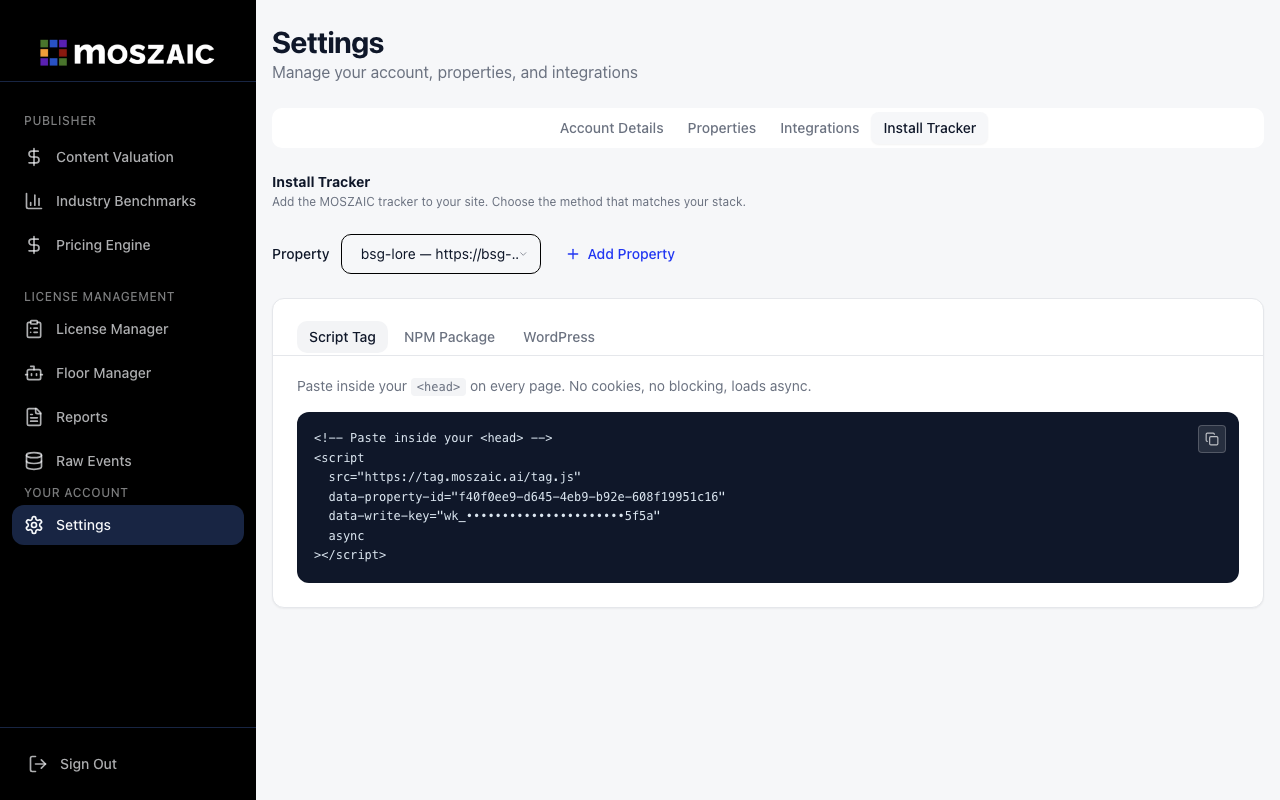
Section titled “Step 3 — Install the tracker”Go to Settings → Install Tracker and choose the method that fits your stack.
| Method | Best for | Bot coverage |
|---|---|---|
| Script Tag | Any site, CMS, Webflow, Ghost | Human visits + JS-executing bots |
| WordPress Plugin | WordPress sites | All bots, server-side |
| npm / Astro | Node.js and Astro apps | All bots, server-side |
The Install Tracker tab shows a pre-filled snippet with your Property ID and Write Key for the selected property. Copy it directly — no need to manually substitute values.
Step 4 — Verify data is flowing
Section titled “Step 4 — Verify data is flowing”After installing, open your site in a browser. A human visit event should appear in your MOSZAIC dashboard within a few seconds.
If nothing appears after a minute, confirm:
- The tracker script is present in the page source (
View Source→ search fortag.moszaic.ai) - The Property ID and Write Key in the snippet match the property you created
What you’ll see in the dashboard
Section titled “What you’ll see in the dashboard”Once data is flowing, your dashboard shows:
- Total Crawls — AI bot visits across your properties
- Bots by Provider — breakdown by OpenAI, Anthropic, Google, Perplexity, and others
- CPCr Value — estimated value of AI access to your content based on crawl volume
- Top URLs — which pages get crawled most and by whom
The dashboard starts empty and grows as crawlers and visitors hit your site.